
What is a Summary Order in WooCommerce?
Summary orders do not exist in native WooCommence but Xeroom enables these to be created from standard orders by grouping them together using one line for the key information of each constituent order (sub-order). Xeroom then enables the managment of their posting to Xero. The totals for each order show as a single line on the Summary Order. There are significant benefits of doing this for online shops or shops connected to physical retail outlets that generate large numbers of small value orders or payments every day:
- Clarity of sales – By condensing dozens of small orders into one daily or weekly total order it provides a much clearer picture of overall business performance and the highlighting of any unusual or spurious activity.
- Avoid cluttering Xero – Keeping Xero clean and tidy without a lot of clutter means it is easier and quicker to use.
- Makes reconciliation easier – Consolidated payments being made daily by merchant processors are much easier to match up within Xero as each order on the Summary Invoice shows as a line, thus saving time.
- Avoid hitting Xero API limits – Xero has daily total and also rate limits on the no of API calls that can be made. This avoids hitting those limits as each Summary Order posted takes only 1-2 calls.
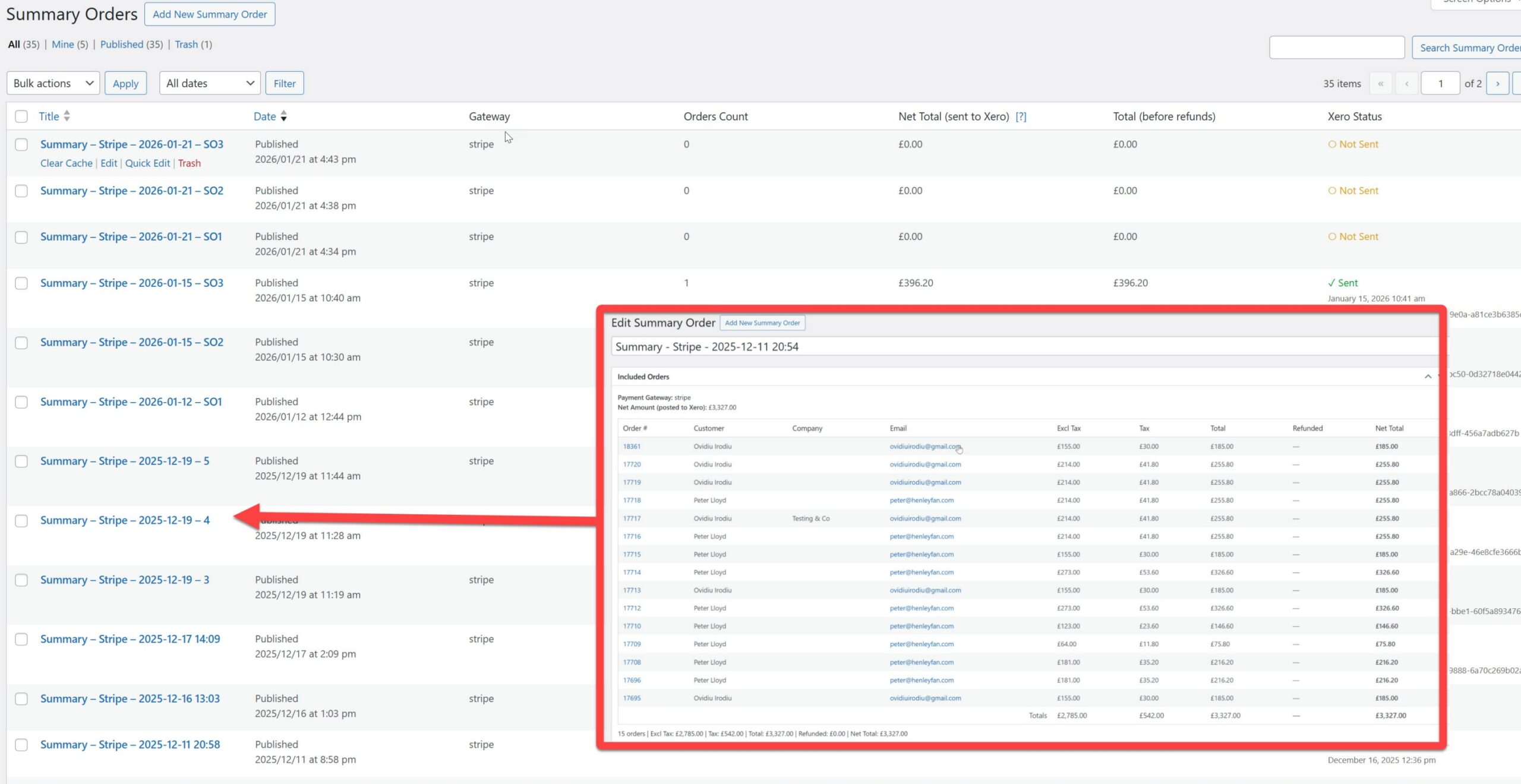
Below is an example which shows a summary order created from 15 sub-orders along with the customers’ names, companies, emails plus the amounts paid, refunded and taxes. Each payment gateway generates a separate summary order and the overall grand total for the period is shown. Below is an example which shows a summary order created from 15 sub-orders along with the customers’ names, companies, emails plus the amounts paid, refunded and taxes. Each payment gateway generates a separate summary order and the overall grand total for the period is shown. Summary orders are given a date stamp and sequence no if more than one per day is generated. The order notes also shows the Xero posting status along with any order history.
A new menu item for Summary Orders is added to WooCommerce – here you will see all the Summary Orders created with their pertinent information.


Any order in the list can be clicked on to drill-down into the constituent sub-order in a new window eg Order 17718. This means the details of any order can be quickly checked making it quick to resolve any queries.

What does a Summary Order look like in Xero?
Once posted the Summary Order will be converted into a typical Xero invoice using the SO name in WooCommerce as the Reference. Apart from the usual financial information about amounts, taxes and totals Xeroom will create a line for each line in the Summary Order with a description that is a combination of the sub-order number in WooCommerce plus the customer name. Here is an example:

How does the Xero Status track the Order journey?
Any order that is processed to become part of a Summary Order updates its Xero Status to either Summary Pending, Summary Sent or Summary Paid once it is posted to Xero. This makes it very easy to track the journey of any order into Xero and see where is it at any point in time.

How do I create an automatic Summary Order?
Orders can be created manually at any time (see below) or automatically on a schedule at a set time daily or weekly. To enable Summary Orders in Xeroom go to the relevant tab in Xeroom/settings where you will find the settings for the Summary Orders.

You can set the Invoice Sending Mode to run only Summary Orders only in which case all orders get put into a Summary Order daily or weekly at the set time. A Contact Name is needed for the Xero association once it becomes an invoice. Note that Individual Orders Only is the default setting. There is also a Hybrid Mode setting which enables both Summary Orders AND Individual Orders to be sent – checks are in place to avoid any order getting posted twice to Xero (eg once individually and secondly as part of a Summary Order).


How do I create a Summary Order manually?
Once Summary Orders are set to be enabled you can select with the tickboxes any orders you wish to create a Summary Order with. Select the Bulk Action from the drop-down menu and then Apply. This will create the new Summary Order that will show in the WooCommerce/Summary Order page as detailed above.

Troubleshooting & dealing with errors
We have provided a number of tools to provide visibility of processing errors and to make troubleshooting quick and easy to ensure that things run as smoothly as is possible.
Order & Summary Order notes
These provide an audit trail history stamp of any orders that are passed to a Summary Order.

The same is true for the Summary Orders themselves:

Order Status’s
These give an instant colour coded snapshot of the system status order-by-order.


Error Logs
Apart from the user orientated notes posted in the Summary Order notes there are also more detailed error logs are created for each of the following events: info, success, warning and error.


Removal of problematic orders and reposting
If there is a problem with a specific order prevent the Summary Order from posting for any reason then it can be removed whereupon the totals update and the order can then be reposted to Xero.

And the order notes update to reflect the removal. After hitting the Update button the order status changes allowing it to be reposted to Xero.
Posting Rules & Status – More Detailed Information
Invoice Sending Modes
You can choose how orders are sent to Xero:
• Individual Orders Only: Each order is sent individually to Xero based on your “Send Invoices” setting in the main Xeroom settings. Summary orders are completely disabled. Status shows: “Sent to Xero” or “Paid in Xero”.
• Summary Orders Only: All orders are automatically grouped into summary invoices. Individual order sending is disabled. Use the frequency setting to control when summaries are created. Status shows: “Summary Sent” or “Summary Paid”.
• Hybrid Mode: Both individual and summary orders can be used. Orders are sent individually based on your “Send Invoices” setting UNLESS they are manually added to a summary. Use with caution to avoid duplicates – once an order is in a summary, it will not be sent individually.
How It Works
1. When Summary Mode is enabled (Daily/Weekly frequency), individual order sending is automatically disabled.
2. Orders included in a summary are marked with “_xeroom_summary_included” meta and will NOT be sent individually.
3. Orders sent individually are marked with “xeroom_order_sent” and will NOT be included in summaries.
4. The Xero Status column in Orders list shows different statuses based on posting method:
• Summary Sent: Order is included in a summary invoice that has been sent to Xero.
• Summary Paid: Order is included in a summary invoice and payment has been posted to Xero.
• Sent to Xero: Order was sent individually (not in a summary).
• Paid in Xero: Order was sent individually and payment has been posted.
Preventing Duplicate Invoices
Each order can only be sent to Xero once – either individually OR as part of a summary, never both. The system automatically prevents duplicate posting using the following logic:
• Orders with “_xeroom_summary_included” meta are excluded from individual sending.
• Orders with “xeroom_order_sent” meta are excluded from summary creation.
• Summary mode setting disables individual order hooks when active.
 SIMPLE TO LEARN