

How to Set Up Cron Jobs for Inventory & Product Synchs
Setting the Correct Batch Size for Synch
Xeroom creates batches in order to handle the Xero limitations on processing the no of inventory updates in one go. As of now ie 2026 the synch can handle up to 1200 products per batch reliably but we have found that 600 is a good number to start with. If all the batches run ok then try increasing it to 1000. If not then reduce it from there if you encounter problems since it is obviously more effecient to update in one larger batch rather than more smaller batches. Xeroom spawns cron jobs to process each batch and they execute at the rate of one/minute. If Xero hits a problem with a particular product update then it will abort the batch and Xeroom will cycle to the next batch. This is why it is important to check all the log files when testing the synch as they will indicate a failed batch.
Generation of Log Files
To test the process use the manual “Synch Now” which will then show the job’s progress and total no of batches. Log files are generated for each batch and numbered sequentially for each batch along with a time stamp. To avoid lots of clutter only the last 50 log files are kept. If this message does not show then the process is not starting and there is an issue with Xeroom in which case please contact support. If the message hangs and doesn’t move forward then you almost certainly have an issue with the cron process not being setup to run on your server – see below for details.


This is how the synch works:
- Depending on the number of products to be sent and the batch size, Xeroom will calculate the number of batches that need to be sent.
- Xeroom then spawns executable cron jobs that will send each batch to Xero at the rate of one/minute creating a log file for the updates.
- After all the batches are sent, the process repeats depending on the user schedule selection: 15 minutes, hourly, daily.
Failed Batch Synch – Debug Mode
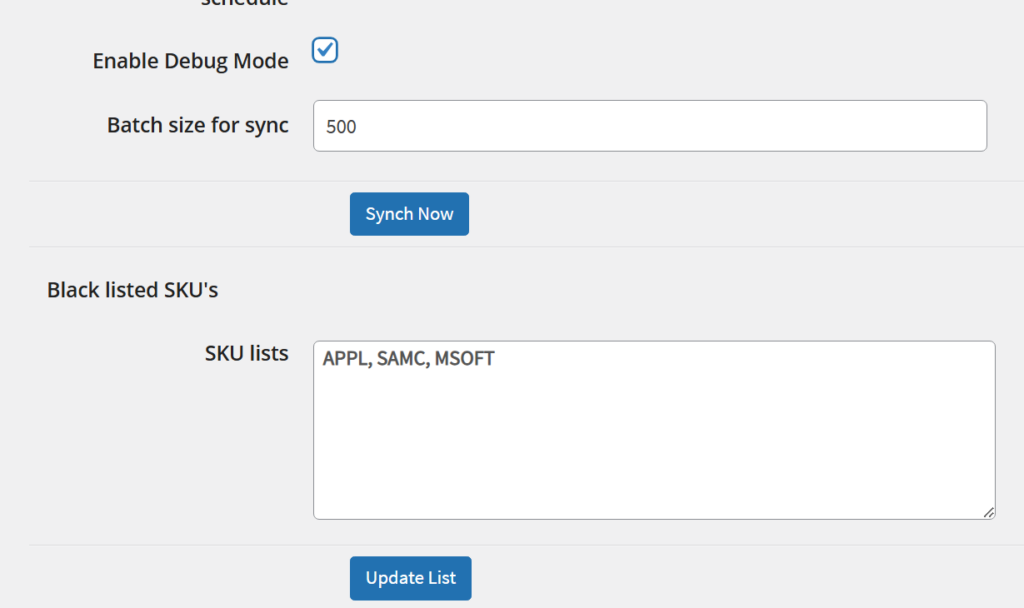
If a batch fails then the log file should show the product at which it failed. This product can then be examined to see any obvious reason for failure (eg voided SKU) and can be excluded from the synch by enabling the debug mode and adding the suspect SKUs to the blacklist of products that are excluded from the synch using a comma separator.
Product Level Setting for Account Mapping
The accounts that product data maps into in Xero can be set at an overall level in the Xeroom settings General Tab or for better granularity at the product level can be set in the Product data tab where Xeroom adds a new tab for Xero account mapping settings which has fields for the Xero Tracking Category (if set), Sales Account, Cost of Goods Sold Account and Inventory Asset Account (for inventory values). These can be bulk populated using a spreadsheet.
Note Brands here is an example of Xero Category Tracking which can be up to two categories which can be used by Xero to tag products with useful labels such as brand, branch, channel etc.

*For detailed info on how to bulk load these settings see separate help article in Help Portal.
Global Product Synchronization – Optimum Batch Size
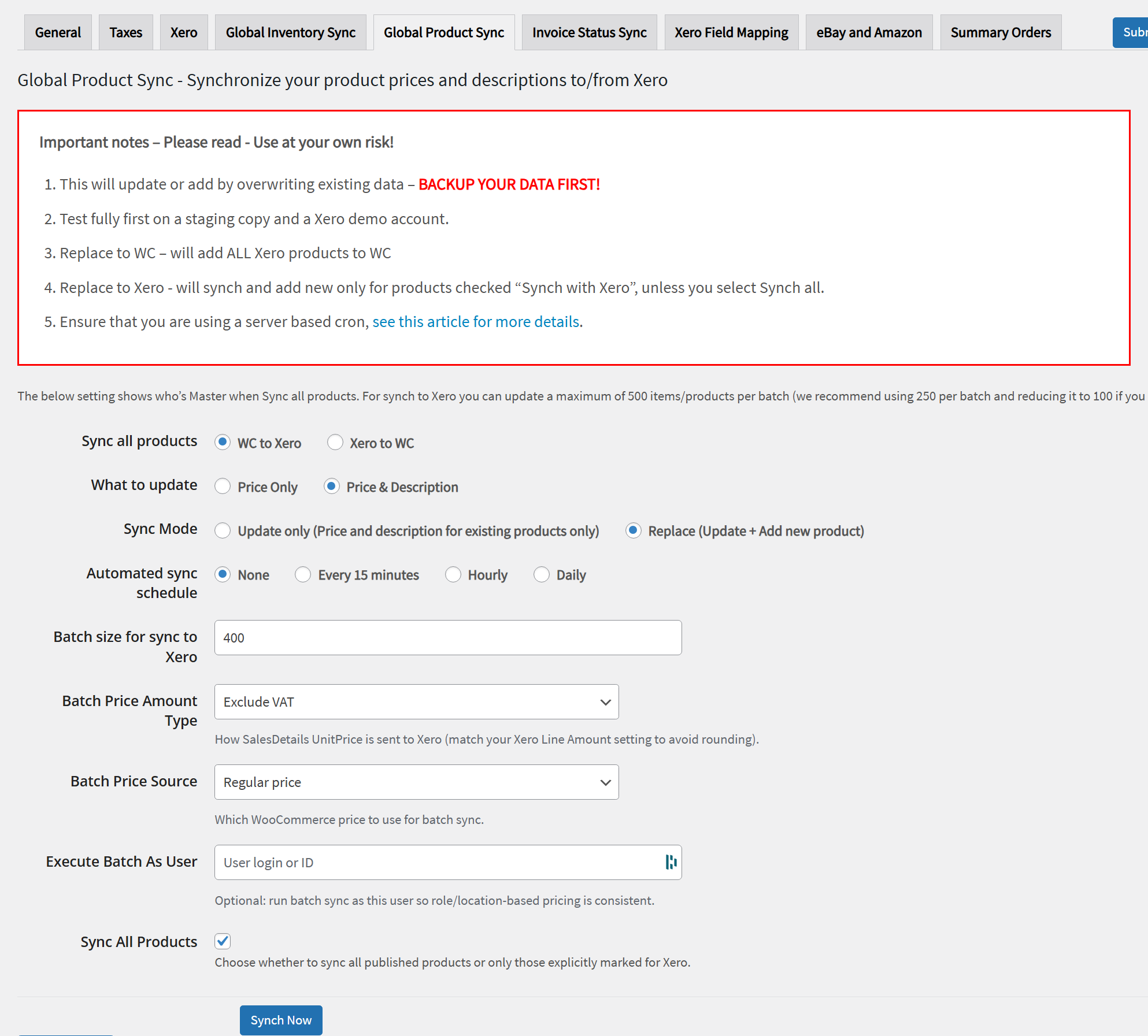
The batching works exactly the same here as in the Global Inventory Synch but due to the larger quantity of data being pushed across the batch size is much lower. We recommend starting with 250 and only increasing if to 500 max if it runs ok with no errors or reducing it to 250 if you hit a problem.
Global Product Synchronization – Log Files
As with the Global Inventory Synch the log filenames describe which way the synch is running plus a batch number suffix added to each one, for each run, so it is easy to check that the synch is happening correctly and for all batches.

The Product Synch log file shows what the new values that have been changed to for each product and also if unchanged will state that:

How Xeroom Runs Batch Jobs Using Cron
When you run a Global Inventory or Global Produc Synch, or a bulk job in the WooCommerce Order dash, you should see the job kicked off and get processed almost immediately ie within a minute. It won’t always be instant as it is due to the cron schedule and what other processes are running. Here is a video to explain it. https://d.pr/v/yS4hEd It should run after a minute or two and we have added a cancel button in case it remains suspended. The cronjob scheduler plugin will tell you to disable the default wp-cron processer by putting this statement in wp-config and then to create a unix job in cpanel for your server define(‘DISABLE_WP_CRON’, true); However our experience is that some hosts will override or control this. The WP crontrol plugin will enable you to see what is going on with your wp-cron system and show you all the events and schedules. If it is not running then you need to speak to your host to determine why. You can also check the cron logs on your server https://cronitor.io/cron-reference/where-are-cron-logs-stored Note that cron is used by other parts of WordPress and detailed in the articles below:
1. Install the WP Crontrol plugin and update the attached file in your Xeroom plugin directory.
2. Set the batch send number to 4 in Xeroom settings
3. Run a Batch send and check if the cron job is spawned – If other cron jobs are running and no Xeroom job is spawned then there is something preventing it. Try a few times and if it never appears let us know. If it does appear then the problem is with the cron not running.
4. Check to see if WP-cron is disabled or not and if it is how cron jobs are run on your server.
5. If you are using the Global Synchs running on a schedule then it is essential to setup cron to run on a once per minute interval on your server to ensure reliable processing since WP-Cron will only run intermittently.
Cron Job Troubleshooting
Xeroom enables you to check that the process is working since log files are created, which show under the Xeroom/log files menu item. If these are not there and the batches are not running or running at weird intervals then check your cron system and if necessary, disable your WordPress cron process and enable a more robust and reliable server-based cron to run ideally every minute (unless you are getting a blockage of jobs being backed up due to repeated requests.) Xeroom will run one cron job per batch and will not spawn another job until the previous one has completed to avoid a log-jam. 
For scheduled synchs running under cron the batches are processed at the same rate as the cron time interval, eg if cron is set to run every 5 mins and synch is hourly with say 3 batches then it will run the first batch each hour, then 5 mins later the next batch and so on. For more visibility you can install a cron manager or scheduling plugin, there are lots and WP Control is a good one that shows both events and schedules.
For further info please see https://developer.wordpress.org/plugins/cron/ and https://www.wpeditorial.com/how-and-why-to-use-the-server-cron-instead-of-wp-cron/.
Q: Can you send me the cron line to call the function: xeroom_sync_schedule?
A: https://wpspeedmatters.com/external-cron-jobs-in-wordpress/ Gives can find a detailed way to setup and achieve a 3rd party cron job on WordPress. Here is a short resume:
-
First, disable
define('DISABLE_WP_CRON', true); -
After that, go to the hosting dashboard cron job, create a new cron that executes every 1 or 2 minutes and add the URL
wget -q -O - https://www.yourdomain.com/wp-cron.php?doing_wp_cron >/dev/null 2>&1
The xeroom_sync_schedule is only available if something is in a queue to be synched with Xero. If not, the xeroom_sync_schedule cron will be removed. That’s why you should implement the 3rd party cron jobs as above.
Further Reading/Info on WordPress Cron Jobs
1. A very handy article https://themeisle.com/blog/disable-wp-cron/2. From the WordPress handbook https://developer.wordpress.org/plugins/cron/
What is WP-Cron?
WP-Cron is how WordPress handles scheduling time-based tasks in WordPress. Several WordPress core features, such as checking for updates and publishing scheduled post, utilize WP-Cron. The “Cron” part of the name comes from the cron time-based task scheduling system that is available on UNIX systems.WP-Cron works by checking, on every page load, a list of scheduled tasks to see what needs to be run. Any tasks due to run will be called during that page load. :WP-Cron does not run constantly as the system cron does; it is only triggered on page load. Scheduling errors could occur if you schedule a task for 2:00PM and no page loads occur until 5:00PM.
Why use WP-Cron?
· WordPress core and many plugins need a scheduling system to perform time-based tasks. However, many hosting services are shared and do not provide access to the system scheduler.· Using the WordPress API is a simpler method for setting scheduled tasks than going outside of WordPress to the system scheduler.
· With the system scheduler, if the time passes and the task did not run, it will not be re-attempted. With WP-Cron, all scheduled tasks are put into a queue and will run at the next opportunity (meaning the next page load). So while you can’t be 100% sure when your task will run, you can be 100% sure that it will run eventually.
Better Host Cron Job Management
Some of the better hosts provide WordPress cron management solutions eg Cloudways offer the below. Ask your host if they offer this if you are not IT competent.

 SIMPLE TO LEARN